Premire color adjust Function
In pr, the primary function of adjusting color is color correction -- RGB color correction or RGB curve or changing color. There are two curves in the Lumetri Color. The first one, like the others, allows you to use the luminescence curve to work with the tone of the image and work on individual curves. (Helpx.adobe.com, 2020)
The second is the hue/saturation curve. The function of this means that I can control the saturation based on hue. The professional tip here is to hold down the Shift key while dragging so that the tone doesn't change when you move outward or inward.
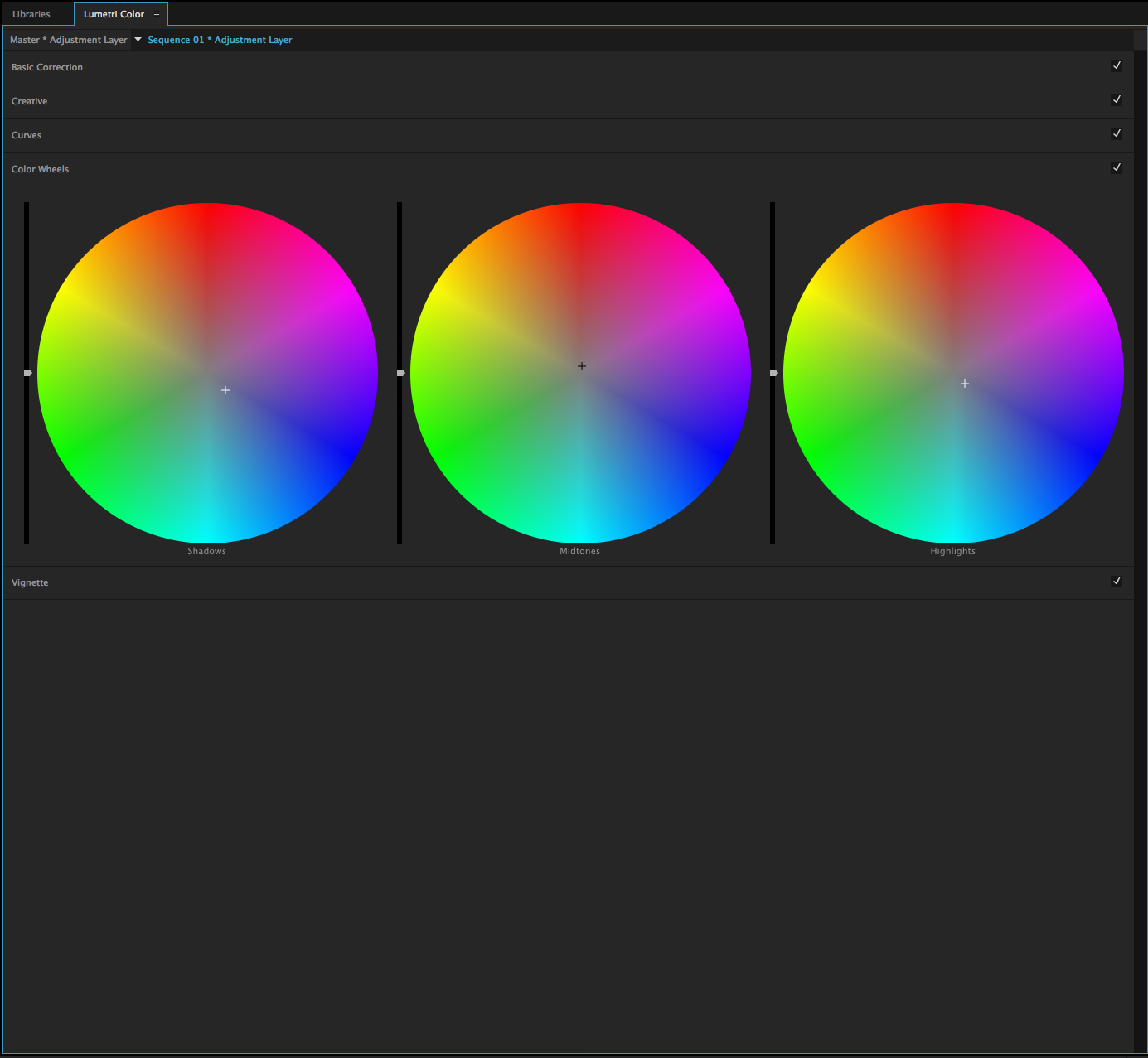
First of all, we need to adjust the color temperature, we must pay attention to, if not a special scene needs a specific color temperature, the color temperature must be white, and then can be stylized color.
If the video material is obviously dark overall, we should adjust the exposure to make the image more comfortable. After adjusting the exposure, we continue to look at the material, focusing on contrast, highlights, shadows, white, and black in the color palette. Fine-tuning. This adjustment will make the picture more delicate. Slightly adjust the color curve to make the color more realistic.

The basic step for adjusting the color saturation is to click on the circular curve and push inward to reduce saturation. Pulling outward is increasing saturation. In the first project, I mainly adjusted the color temperature saturation in PR. Adjusting the color temperature and increase the saturation can bring more color to the animation and make the weather look sunny. Warm colors make the people in the animation look friendly.

Reference:
Helpx.adobe.com. (2020). Adjust color, lighting, temperature, and tint - Premiere Elements 11. [online] Available at: https://helpx.adobe.com/premiere-elements/archive/pre-11-tutorials/adjust-video-color-lighting-temperature-tint.html [Accessed 31 Jan. 2020].
The second is the hue/saturation curve. The function of this means that I can control the saturation based on hue. The professional tip here is to hold down the Shift key while dragging so that the tone doesn't change when you move outward or inward.
First of all, we need to adjust the color temperature, we must pay attention to, if not a special scene needs a specific color temperature, the color temperature must be white, and then can be stylized color.
If the video material is obviously dark overall, we should adjust the exposure to make the image more comfortable. After adjusting the exposure, we continue to look at the material, focusing on contrast, highlights, shadows, white, and black in the color palette. Fine-tuning. This adjustment will make the picture more delicate. Slightly adjust the color curve to make the color more realistic.
The basic step for adjusting the color saturation is to click on the circular curve and push inward to reduce saturation. Pulling outward is increasing saturation. In the first project, I mainly adjusted the color temperature saturation in PR. Adjusting the color temperature and increase the saturation can bring more color to the animation and make the weather look sunny. Warm colors make the people in the animation look friendly.

Reference:
Helpx.adobe.com. (2020). Adjust color, lighting, temperature, and tint - Premiere Elements 11. [online] Available at: https://helpx.adobe.com/premiere-elements/archive/pre-11-tutorials/adjust-video-color-lighting-temperature-tint.html [Accessed 31 Jan. 2020].


Comments
Post a Comment